


Building a DTF Gang Sheet in Canva: Layout, Spacing, and Resolution Tips

If your designs already live in Canva, it's natural to want to build the entire gang sheet there too, one canvas, multiple designs arranged and ready to export. That works for part of the process. It doesn't work for all of it, because Canva has its own size ceiling that most people never hit until they try to lay out a multi-foot sheet. Here's exactly where Canva fits into a DTF gang sheet workflow, where it doesn't, and how to still end up with a sharp, 300 DPI result.
Where Canva Actually Fits Into a Gang Sheet Workflow
Canva is a strong tool for designing the individual pieces that go onto a gang sheet, logos, text graphics, small icons, anything sized in inches rather than feet. What it isn't built for is holding the entire finished sheet as one canvas. The reason comes down to a size limit most designers never need to think about until a gang sheet asks them to.
The Resolution Math Canva Doesn't Tell You
Canva's own help documentation gives a hard ceiling on custom canvas size: a minimum of 40 x 40 px and a maximum of 8000 x 3125 px. At the 300 DPI that DTF printing requires for a sharp result, those pixel caps translate into real-world inches:
| Canva's Pixel Cap | Inches at True 300 DPI |
|---|---|
| 8,000 px | ~26.6 inches |
| 3,125 px | ~10.4 inches |
That's a usable canvas of roughly 26.6 by 10.4 inches at full print resolution, if you split the two caps across width and height. A single logo or a small multi-design layout fits inside that easily. A gang sheet doesn't. Iris DTF's own Gang Sheet Builder starts at 22 x 24 inches and runs up to 22 x 240 inches, and even the smallest of those sizes needs roughly 6,600 x 7,200 pixels at true 300 DPI, past at least one of Canva's two caps no matter how you orient it.
So Can You Build the Whole Sheet in Canva?
Not as a single canvas, no, not without resizing the whole thing down and losing resolution in the process. Trying to force a 22 x 60 inch gang sheet into an 8,000 x 3,125 px canvas means scaling everything down well below 300 DPI, which is exactly the kind of soft, slightly blurry result a resolution check is supposed to catch before it ships.
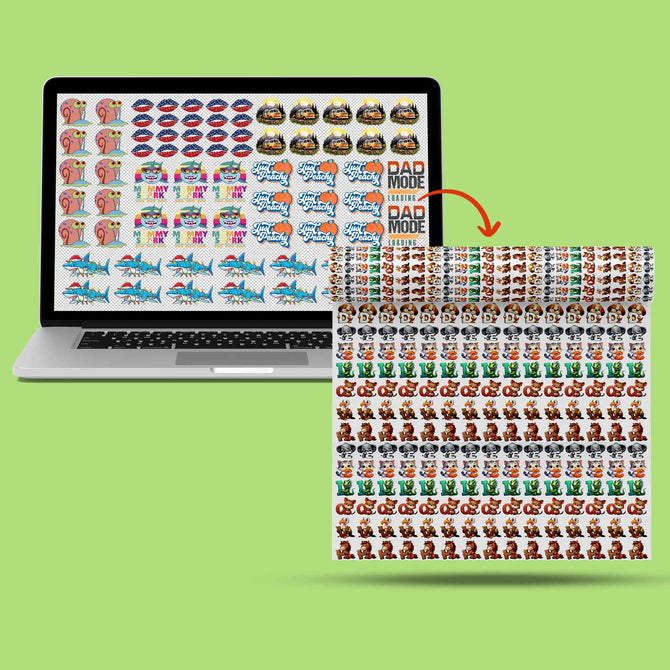
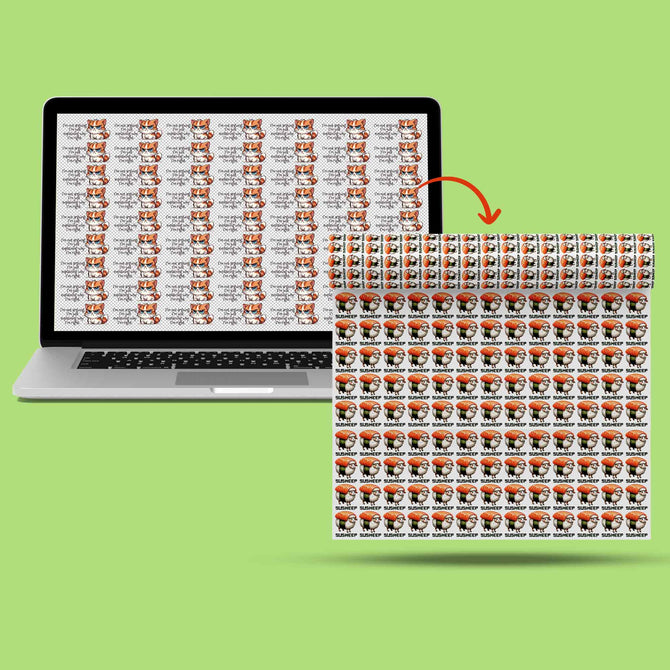
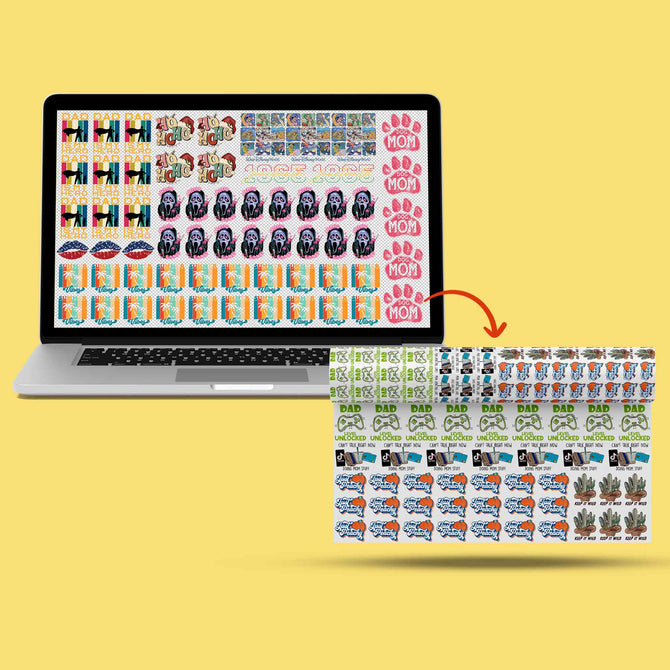
What does work is splitting the job the way it's actually meant to be split: design each individual piece in Canva at its own true size, then bring those finished files together using a tool actually built to hold a multi-foot sheet. That's a meaningfully different workflow than dragging one giant canvas around in Canva, but it gets you the same final result without the resolution loss.

Designing Each Piece in Canva the Right Way
Since each individual design stays well under Canva's size caps, this part is straightforward:
- Set a custom canvas size in inches, matching the exact size you intend to print that one design at, not a rough guess that you'll scale later.
- Build or place your artwork at that size from the start, rather than designing small and scaling up afterward, which is what causes soft edges once it's printed large.
- Export as PNG so the background stays transparent rather than printing as a visible white box around the design.
- Avoid Canva's own low-resolution stock elements where possible, since a stock icon or clip art piece pulled into a design can carry lower resolution than the rest of your file without being obvious on screen.
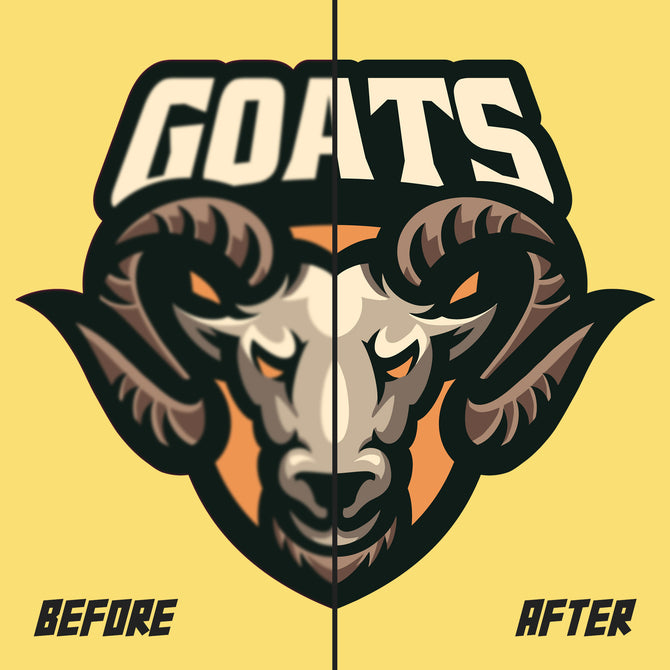
If a design comes out softer than expected after exporting, running it through the Iris AI Enhancer before uploading can sharpen detail and clean up edges that didn't translate cleanly out of Canva.
Getting Your Canva Designs Onto an Actual Gang Sheet
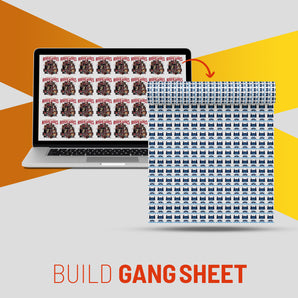
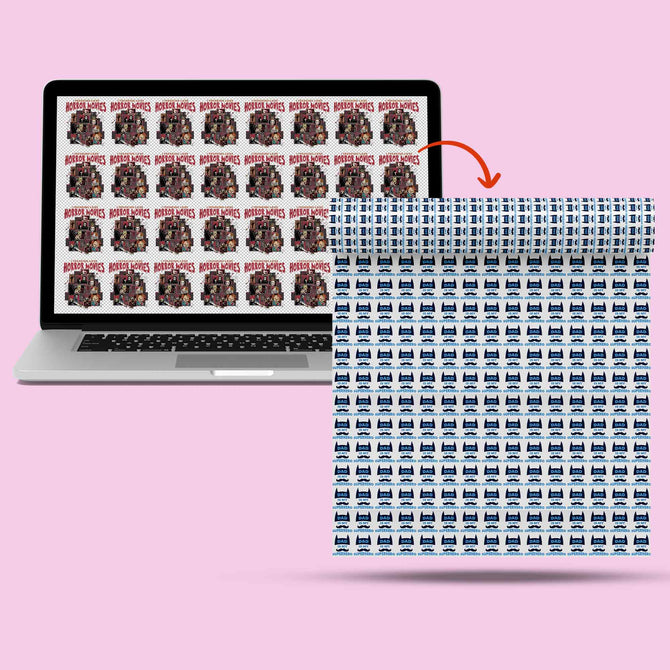
Once each piece is exported as its own print-ready file, the gang sheet itself comes together in the DTF Gang Sheet Builder rather than back in Canva. Upload each PNG, PDF, SVG, or AI file, and either let Auto Build arrange everything and flag anything that isn't high resolution, or switch to Manual mode and position each piece yourself. Either way, the builder is sized to handle the actual sheet dimensions, 22 inches wide and up to 240 inches long, without the pixel ceiling Canva runs into.

If you'd rather assemble the full layout yourself in a different program built for large print files, you can skip the builder entirely and upload a finished gang sheet instead. That's the better route for a full-sheet layout than trying to make Canva's canvas stretch past what it's built for.
Spacing and Layout Once You're in the Builder
A few habits keep the final cut clean once your Canva-designed pieces are loaded into the builder:
- Leave roughly a quarter-inch gap between pieces so the cutter has a clean line to follow between designs.
- Group similar sizes together on the sheet, it keeps cutting consistent once everything's pressed and separated.
- Double-check for overlap before checkout, since the builder previews the layout exactly as it will print.
- Trust the resolution flag if Auto Build raises one, rather than uploading a flagged file anyway and hoping it looks fine once it's large.
The Bottom Line
Canva is genuinely useful for a DTF gang sheet, just not for the whole sheet at once. Its own size limits cap out well below what a real gang sheet needs, so the reliable path is designing each piece in Canva at full resolution, then assembling the actual sheet in a tool built to hold it. That split sounds like an extra step, but it's the difference between a sheet that prints sharp at any size and one that looks fine on screen and soft once it's pressed.
Not sure which tool fits your file? Browse the full Design Tools lineup and find the right one before you upload.
Once your file passes this checklist, you're ready to upload it directly on our DTF Transfers page.
Ready to Print?
Premium DTF transfers. Same-day printing. Free shipping on orders over $100.
- 4.9 Google Rating
- 2,200+ Reviews
- Same-Day Printing