How to Build a DTF Gang Sheet in Canva: The 2026 Professional Guide

What Is This Article About?
Your favorite design tool is secretly ruining your prints. Most creators think Canva is just for social media, but it's actually a powerhouse for custom apparel. The catch? If you use the standard settings, you'll end up with blurry logos and wasted film. You need a specific workflow to turn Canva into a professional DTF engine. Using Canva to build gang sheet files requires more than just dragging and dropping images. It demands a precise setup to avoid the dreaded white boxes and pixelated edges that kill your profit margins.
We know the frustration of opening a fresh shipment only to find "ghost" borders around your designs. It's a waste of time and expensive material. This 2026 guide shows you how to master the exact steps for high-resolution output. You'll learn how to maximize every inch of space, ensuring your prints look professional every single time. We're diving into the technical secrets of 300 DPI exports, transparent backgrounds, and layout strategies that guarantee a fast local turnaround here in Richardson. Let's get your designs print-ready and your business moving.
Key Takeaways
- Ditch the expensive software subscriptions and learn why Canva is the go-to tool for high-speed DFW apparel startups.
- Master the precise canvas dimensions required to use canva to build gang sheet files that match industrial printer standards.
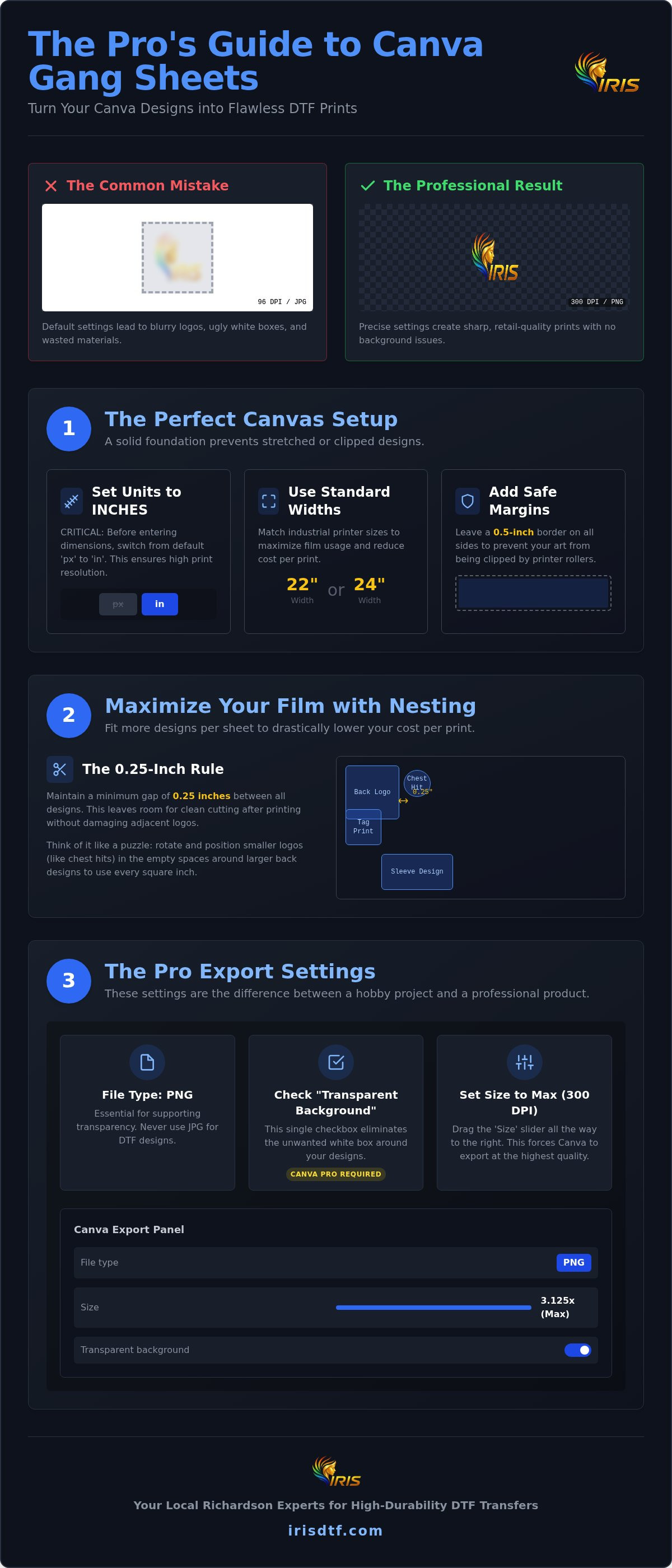
- Use professional nesting techniques to fit more logos per sheet while keeping the essential 0.25-inch gap for clean cutting.
- Unlock the secret export settings for 300 DPI PNGs to eliminate blurry edges and unwanted white backgrounds.
- Leverage local Richardson expertise to turn your Canva exports into high-durability transfers with fast pickup options.
The Pros and Cons of Using Canva to Build Gang Sheets
Canva has changed the game for apparel businesses across the DFW metroplex. It's fast. It's intuitive. Best of all, it doesn't require a massive annual Adobe Creative Cloud subscription. For a startup in Richardson or Dallas, that's a major win for the bottom line. Modern Direct-to-film (DTF) printing allows for incredible detail and vibrant colors, but only if your design software can handle the professional output requirements. Canva fills that gap for many, but it isn't without its hurdles.
Why DFW Creators Choose Canva for DTF
The learning curve for professional design software is notoriously steep. Canva removes that barrier with a simple drag-and-drop interface. Creators in Plano and Frisco use it to build complex layouts in minutes rather than hours. You get instant access to a library of fonts and elements that streamline the creative process. It's also built for speed. Teams can share a single link to review a layout before sending it to the printer. This efficiency is essential when you're trying to scale a custom apparel brand on a tight schedule.
However, the "DPI Trap" is a real threat to your quality. By default, many web-based tools export at 72 or 96 DPI. This is fine for an Instagram post but a disaster for physical printing. If you don't know how to force a high-resolution export, your prints will look soft and unprofessional. This is where many beginners fail when using canva to build gang sheet files. You have to know the specific settings to bypass these low-res defaults.
Technical Limitations You Must Overcome
Transparency is your biggest technical hurdle. The free version of Canva won't let you export with a transparent background. Without this feature, your designs will print with unsightly white boxes around them. You also need to monitor your color accuracy. Canva operates primarily in RGB, which is the color space for screens. Professional DTF printers use CMYK ink systems. This can lead to unexpected shifts in neon or very bright tones if you aren't careful with your selection.
Finally, consider the physical size. Canva has a maximum canvas length that can limit extremely long production runs. If you're trying to build a massive 15-foot roll, you might hit a software wall. But for most daily production needs, mastering the canva to build gang sheet workflow is the fastest way to get your products to market. We've seen thousands of successful prints come through our Richardson facility that started as a simple Canva design.
Step 1: Setting Up Your Canva Canvas for DTF Printing
Success starts with the right foundation. If you get the canvas size wrong now, your designs will be stretched or clipped later. Using canva to build gang sheet files isn't just about design; it's about engineering a print-ready document. You must match your digital workspace to the physical capabilities of industrial equipment to avoid wasted film. It's precise. It's methodical. Getting this right saves you money before you even upload a file.
Calculating Your Gang Sheet Dimensions
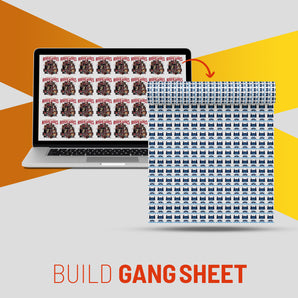
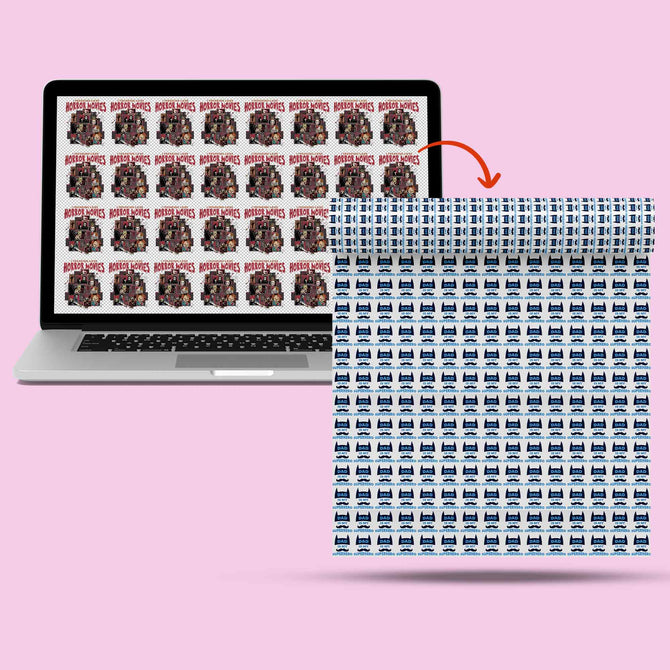
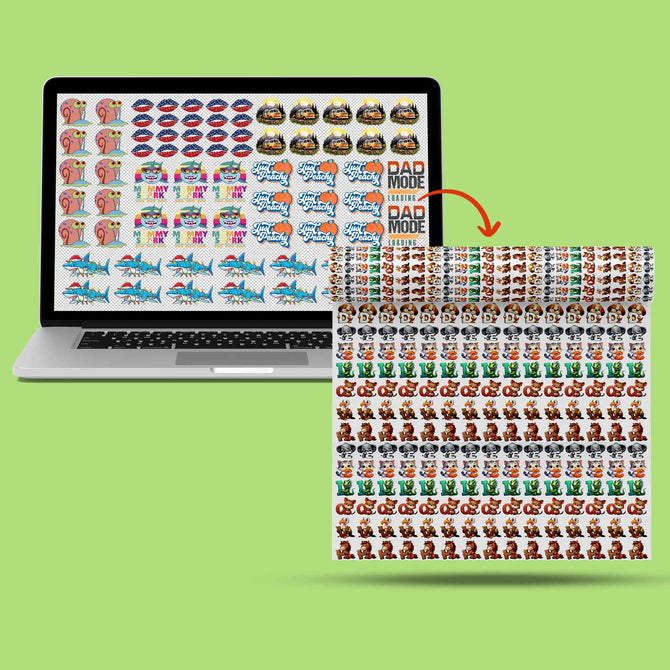
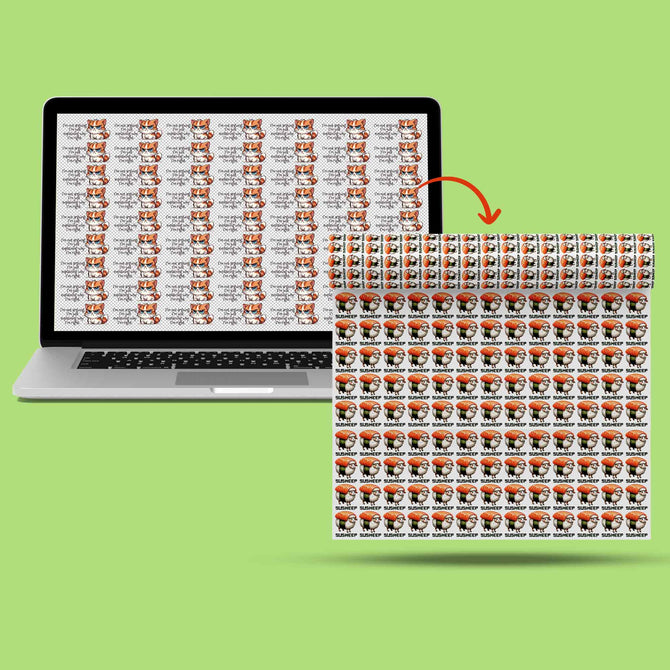
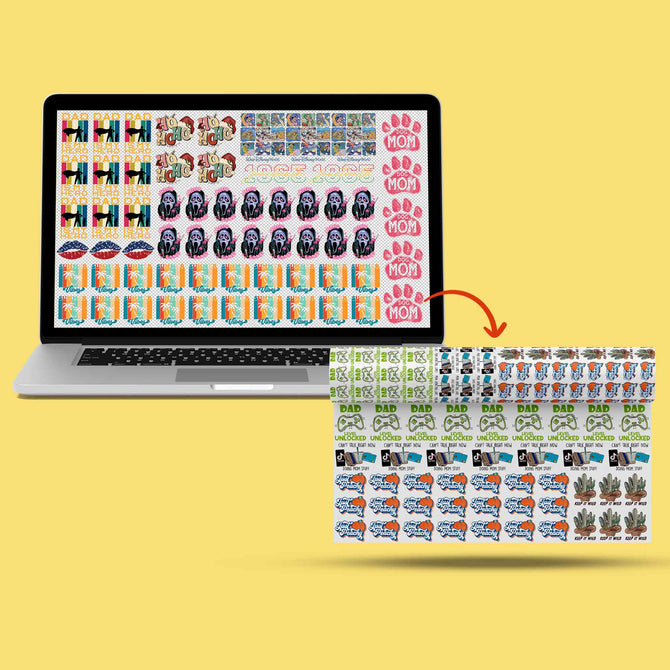
A gang sheet is a cost-saving tool for bulk printing that groups multiple logos onto a single roll of film. Instead of paying per individual design, you pay for the total space used. In 2026, the industry standard for high-volume production has settled on 22-inch and 24-inch widths. These widths maximize the film roll while ensuring the printer's rollers don't interfere with your artwork. It's the sweet spot for efficiency.
Always plan for 0.5-inch margins on all sides. This "safe zone" prevents the printer from clipping your artwork during the high-speed feeding process. If you have 10 large back designs and 20 chest hits, calculate the total vertical space you'll need. Professional printers can handle continuous runs up to 120 inches or more. Knowing your total volume upfront prevents you from having to restart the layout halfway through. It keeps your workflow moving.
Creating the Document in Canva
Open Canva and head straight for the 'Create a design' button. Choose 'Custom size' immediately. Here is the most critical step: change the dropdown from 'px' (pixels) to 'in' (inches) before you type a single number. Canva's default pixel resolution is often too low for the professional printing file specifications required for crisp, retail-quality transfers. If you stay in pixels, you're almost guaranteed a blurry result.
Input your width (22 or 24 inches) and your calculated height. Once the canvas opens, name your file clearly. We recommend a format like "BrandName_GangSheet_24x60_Date". This makes it much easier for our team at the Richardson facility to track your order and ensure everything is processed correctly. Getting these numbers right ensures your logos look exactly as intended when they hit the heat press. If you're ready to see how these dimensions translate to real-world quality, check out our options for Custom DTF Transfers to get started. Don't leave your resolution to chance.
Step 2: Arranging Designs for Maximum Efficiency
Layout is where your profit is made or lost. Once your canvas is set, the real work begins. You aren't just placing images; you're engineering a high-yield production sheet. Using canva to build gang sheet files allows you to visualize exactly how much apparel you can produce from a single roll. Every square inch of film costs money. If you leave large gaps of white space, you're essentially throwing away your budget. It's time to get strategic with your placement.
The "Overlapping" nightmare is the first thing to avoid. If two design boxes touch or overlap, the printer may struggle to distinguish the boundaries. This often leads to ruined transfers where the white ink base bleeds across designs. Keep your eyes on the edges. Use the 'Position' tool to manage your layers and ensure nothing is accidentally stacked. It's a simple check that prevents a massive headache at the heat press.
Optimizing Your Layout to Save Money
Mastering the art of 'nesting' is the secret to professional-grade efficiency. This involves fitting smaller items, like neck labels or sleeve hits, into the natural negative space of larger back designs. Don't just line things up in a grid. Rotate your designs. Flip a logo 90 degrees if it helps it snuggle into a gap. Canva is now used by professionals and large organizations because its interface makes these micro-adjustments incredibly fast.
Precision requires the right tools. Turn on 'Rulers and Guides' in your settings. These allow you to maintain a strict 0.25-inch gap between every design. This space is essential for your scissors or industrial cutter. If you crowd the designs too much, you'll find it impossible to cut them apart without slicing into the artwork. For more advanced strategies on scaling your production, see our guide on Mastering DTF Gang Sheets.
Transparency and Quality Checks
Before you commit to your layout, perform a final quality audit. Every image you upload must be a high-resolution 300 DPI file. If you ganged up low-quality screenshots, the final print will be pixelated and soft. Look closely for "ghosting" pixels. These are faint, nearly invisible background remnants that appear as a muddy haze around your print. They're hard to see on a white screen but very obvious on a black shirt.
Avoid semi-transparent effects. Canva offers many "glow" or "shadow" features that look great on a monitor but fail in DTF printing. DTF requires a solid, 100% opaque base to hold the adhesive powder. Faded edges often result in a "crunchy" or peeling transfer. Stick to hard edges and solid colors to ensure your canva to build gang sheet workflow produces retail-ready results every time. We've seen these small checks make the difference between a repeat customer and a refund.
Step 3: Exporting High-Resolution Files for Pro Printing
You've built the perfect layout. Now, don't let default settings ruin your hard work. The export stage is where most beginners fail when using canva to build gang sheet files. It's the "make or break" moment for your apparel brand. If you click download without adjusting the parameters, you're likely getting a low-resolution file that will look muddy on a t-shirt. Precision here is non-negotiable. Quality starts with the export.
Start by selecting PNG as your file type. It's the universal standard for DTF because it supports the transparency and high detail required for industrial printers. But here's the professional secret: the "Size" slider in Canva is your best friend. To reach the professional standard of 300 DPI, you must move that slider. For a canvas already set to 22 or 24 inches, sliding it to the maximum (3x) ensures the output has enough pixel density to stay crisp. It's a simple hack that separates hobbyists from professionals.
Canva Pro vs. Free: The Transparent PNG Secret
Let's be direct. A Canva Pro subscription is an essential cost of doing business in 2026. The current monthly rate of $18 is a small price for professional results. Why? Because the free version doesn't allow for transparent background exports. If you export a file with a white background, the DTF printer will treat that white box as part of the design. You'll end up with a stiff, unwearable block of ink on your garment. Iris DTF requires transparent backgrounds for clean prints. There are free online background removers, but they often compress your file and destroy the resolution you worked so hard to maintain. Investing in Pro is the only way to guarantee a print-ready result every time.
The Final Quality Check: 300 DPI or Bust
Before you upload to our Richardson portal, verify your work. Open your exported PNG on your desktop and check the file properties. If the dimensions look small or the file size is under 5MB for a large sheet, something went wrong. Common errors include forgetting to check the 'Transparent Background' box or leaving the size slider at 1x. Fix these in seconds by re-exporting with the correct settings. It's much faster to double-check now than to wait for a reprint. We want your first print to be your best print.
Once you have your high-res, transparent PNG ready, it's time to bring your vision to life. Our team is ready to handle the heavy lifting with industrial-grade precision. You can order your DTF Gang Sheets today and experience the difference that 300 DPI precision makes for your brand. We don't just print; we ensure your Canva designs translate into retail-quality apparel that lasts.
Ordering Your Canva Gang Sheet from Iris DTF in Richardson
Your digital work is finished. The file is exported. Now, you need a partner who can translate that screen-perfect design into a retail-ready garment. We specialize in high-volume production for creators who demand precision. Using canva to build gang sheet files is the first half of the battle. The second half is choosing a printer with the hardware and expertise to handle your vision. We don't just print; we deliver professional reliability.
Uploading your file is a simple, one-step action. Head to our custom dtf transfers page and select your sheet size. Our system is optimized to accept your high-resolution Canva PNGs without stripping away the quality. We act as your final quality-check stage. If we see something that won't print perfectly, we flag it. That's the value of a partner with 10 years of industry experience standing behind every roll.
Fast Turnaround for DFW Brands
Speed is your competitive advantage. While other printers make you wait for cross-country shipping, we offer local solutions that keep your momentum high. We are based right here in Richardson, TX. This means business owners in Dallas, Plano, and Frisco can skip the shipping queue entirely. Orders placed before 11 AM Central Time qualify for same-day shipping or next-day local pickup. You can go from a Canva design to a finished shirt in less than 24 hours. It's fast. It's efficient. It's built for the pace of the modern apparel industry.
Scale Your Business with Bulk Gang Sheets
Scaling a brand requires moving beyond individual transfers. High-volume gang sheet rolls are the engine for your growth. We provide wholesale pricing for Dallas-based clothing lines that are ready to move from small batches to massive production runs. Whether you need a single five-foot roll or a thousand feet of film, we have the capacity to deliver. We've built our reputation on being a reliable partner for both small-scale projects and massive commercial demands. Check out our DTF Near Me page for specific details on our local service area and pickup hours.
Don't settle for blurry prints or slow vendors. You've mastered using canva to build gang sheet layouts that look incredible. Now, trust the Richardson experts to bring those designs to life with vibrant colors and industrial durability. Your creative success depends on reliable hardware. We provide that engine. Let's get to work.
Scaling Your Apparel Brand with Professional Precision
Scaling your custom apparel brand doesn't require a degree in graphic design. It requires a methodical approach and the right production partner. By mastering the canvas setup, optimizing your design nesting, and forcing high-resolution 300 DPI exports, you've turned a simple web tool into a professional engine. Using canva to build gang sheet files is the most efficient way to maximize your budget and your output in 2026. You now have the blueprint for retail-quality results.
Now it's time to bring those designs to life. We combine 10+ years of printing expertise with the industrial hardware your brand deserves. Whether you're a startup in Plano or an established line in Dallas, our Richardson facility is ready to work. Experience the speed of our fast 24-hour turnaround and the convenience of local DFW pickup. Stop guessing about print quality and start producing durable, vibrant transfers that last. Professional reliability is just one click away.
Build Your Custom DTF Gang Sheet with Iris DTF Today. Your creative vision is ready for the world. Let's get printing.
Frequently Asked Questions
Can I use the free version of Canva to build a gang sheet?
No, the free version is not recommended because it lacks the ability to export with a transparent background. Without transparency, your transfers will print with a solid white box around the artwork. Investing in a Pro subscription is the most efficient way to ensure your prints are retail-ready. It's a small cost for professional results.
What is the best file format to export from Canva for DTF?
PNG is the universal standard for high-quality DTF transfers. It maintains the necessary transparency and detail for industrial printing equipment. While Canva offers other formats like PDF or JPG, these often compress the image or flatten layers. Stick to PNG to preserve the integrity of your layout when using canva to build gang sheet workflows.
How do I make sure my Canva gang sheet is 300 DPI?
You must move the 'Size' slider to the maximum (3x) during the export process. Canva's default download setting is often too low for professional print standards. By forcing a higher resolution export, you ensure your logos remain crisp and sharp on the final garment. Always verify the file size is substantial before uploading your order.
What width should I set my gang sheet in Canva for Iris DTF?
Set your canvas width to 22 or 24 inches. These are the industry favorites for 2026 because they maximize the film roll while avoiding edge clipping from the printer rollers. Matching your digital workspace to these physical dimensions is essential for a successful print. It prevents your designs from being stretched or distorted during production.
Why does my Canva design have a white box around it when printed?
This happens when the 'Transparent Background' checkbox is missed during the PNG export. If this setting isn't activated, Canva fills the empty space with solid white pixels. Our printers will read those pixels and lay down a white ink base. Always double-check this setting in the download menu to ensure your designs have clean, professional edges.
How many logos can I fit on a 24x60 inch gang sheet?
You can typically fit between 40 and 60 standard pocket logos on a sheet of this size. If you're printing large 10-inch back designs, you might fit 5 or 6 alongside smaller sleeve hits. Using canva to build gang sheet layouts allows you to nest smaller items into the gaps to maximize your total yield.
Does Canva support CMYK color for professional DTF printing?
Canva operates primarily in RGB, but our professional RIP software handles the conversion to CMYK automatically. Most standard colors translate perfectly. If your brand uses specific neon or ultra-vibrant tones, be aware that slight shifts can occur. We recommend using solid, high-contrast colors to ensure the most accurate results on our industrial equipment.
Can I pick up my gang sheet order locally in Richardson, TX?
Yes, local pickup is available at our Richardson facility for all DFW customers. This is the fastest way to get your transfers without waiting for shipping. Orders placed before 11 AM often qualify for rapid turnaround. Simply select the local pickup option at checkout to streamline your production schedule and save on logistics costs.